
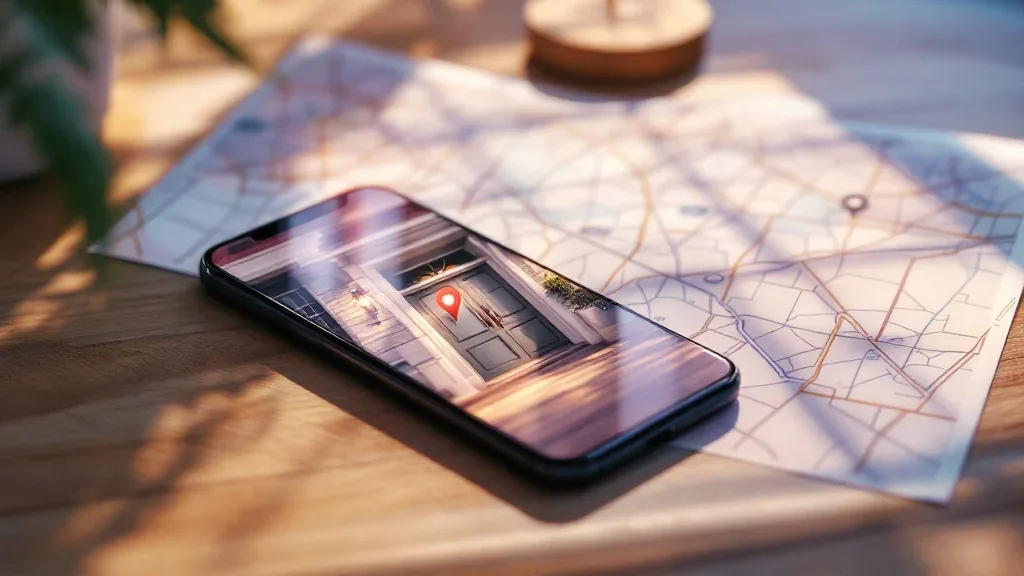
Encryption controls delivery; metadata removal controls what is inside the file you deliver.
A photo can reveal where it was taken if it contains location metadata and that data survives the sharing process. End-to-end encryption does not, by itself, remove metadata from an attachment. It protects delivery to the intended recipients; it does not decide which details those recipients should receive.
The risk is conditional, not automatic. Your camera must have recorded a location, or another tool must have added it, and the shared copy must still contain it. The visible scene can also reveal a place even when no GPS tag remains.
What is EXIF metadata?
EXIF is a format used to store information associated with an image, such as camera settings, capture time and sometimes GPS coordinates. Not every image contains every field. Some location information also lives in a photo-service database rather than inside the file itself.
That distinction matters: removing a location shown in a photo app may not alter every original file or every export. Inspect the copy you intend to share, not just the library's map view.
Encryption and metadata removal solve different problems
| Question | Relevant protection |
|---|---|
| Can an intermediary read my attachment in transit? | Authenticated end-to-end encryption, where supported |
| Can my recipient see coordinates in the received file? | Metadata removal before sharing |
| Can someone infer my location from a street sign in the photo? | Review, crop or obscure the visible scene |
| Can the recipient forward the image? | Recipient trust; encryption cannot prevent every copy |
A messenger may strip metadata during image processing, but that is a separate feature from encryption. Sending as an image, original, document or file can take different processing paths. Do not assume that a result from one path applies to the others or to a later app version.
See what end-to-end encryption protects for the broader distinction between protecting delivery and controlling the recipient.
How to check and remove photo location data
On iPhone or iPad
Apple's personal-safety guide explains how to inspect location in Photos, remove a photo's location and turn off location sharing in the share sheet. It also explains how to stop Camera collecting locations for future images.
Before sending, review the sharing options for the selected photo. A setting for this share is not a promise that all future shares or every app will behave identically. If the location is sensitive, inspect the resulting copy as well.
In Google Photos and on Android
Google distinguishes camera-recorded coordinates from locations estimated or added in Photos. Its location-management guide warns that changes in Photos do not necessarily change the original location data when a file is downloaded and shared elsewhere.
Use your camera's location settings for future pictures. For an existing file, use a trusted editor or metadata-removal tool that produces a new copy, then inspect that copy. Do not upload a sensitive image to an unfamiliar website just to discover whether it contains sensitive information.

Keep an original privately if you need it for your own records. Removing metadata from a sharing copy does not require deleting metadata from every private copy.
Test the exact sharing route
A small, non-sensitive test is more useful than an unsupported list claiming that every version of an app always strips EXIF.
- Choose a harmless test image with known metadata. Do not use a home address or another person's private photograph.
- Make a sanitised copy and inspect it locally for location fields.
- Send that copy to a consenting trusted recipient using the route you plan to use: image, file or original-quality mode.
- Ask them to inspect the received file, not merely the image displayed in chat.
- Record the app version and sharing route if the result matters for a recurring workflow.
This is a test procedure, not a report of tests performed for this article. No messenger-specific stripping behaviour is certified here.
What screenshots do and do not change
A screenshot is a newly created image; it does not simply carry the original photograph's EXIF block along with the pixels. But it can still show an address, a map, a notification or other identifying detail. Cropping or taking a screenshot is therefore not a complete privacy review.
Likewise, absence of a GPS field does not mean a picture contains no location clues. Landmarks, reflections, badges and packaging may reveal context. Google makes this limitation explicit in its photo-location privacy guidance.
What should Livara users assume?
Do not infer metadata removal from Livara's attachment-encryption documentation. Encryption and image sanitisation need separate evidence. Until you have verified a particular sharing route, prepare the file yourself when its location is sensitive.
Also distinguish attachment metadata from messaging metadata: information about delivery and communication patterns is a different question from coordinates embedded in a picture. A public channel is not a private direct chat, regardless of how carefully you prepared the image.
Frequently asked questions
Does sending a photo reveal my home address?
It can reveal where a photo was taken if location metadata survives, but the location is not necessarily your home and is not always exact. The visible scene may provide additional clues.
Does end-to-end encryption remove GPS tags?
Not by itself. An app can separately remove them before encryption, but that behaviour must be checked rather than assumed.
Does document mode always preserve metadata?
It may preserve the original file. Behaviour depends on the app and version, so sanitise the file first instead of relying on a mode label.
Can I remove data after sending?
You cannot rely on deleting a message to erase a copy someone already saved. Review the file before sharing and choose recipients accordingly.