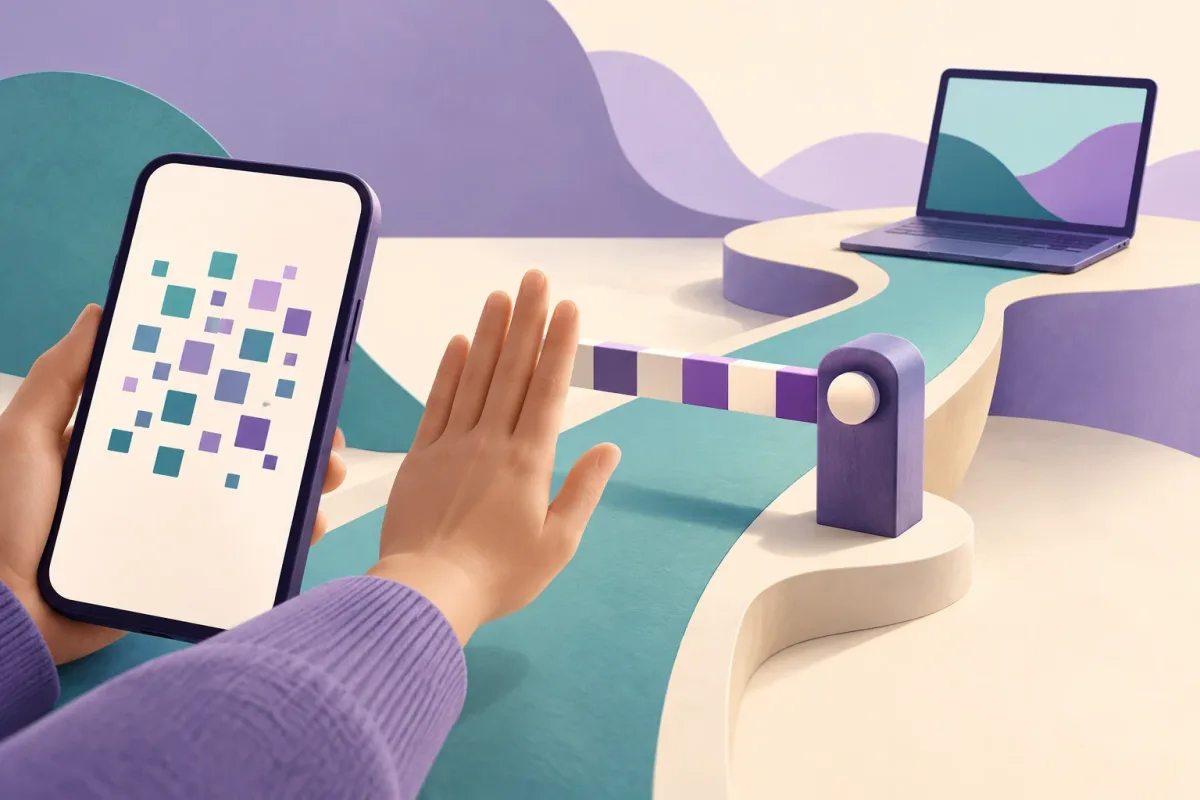
Verify the action you are authorizing, not just the appearance of the code.
A message says you must scan a QR code to join a private group or keep your account active. The next screen asks to link a device. Those are different actions. Stop before approving: a genuine account-linking mechanism can still be used for a dishonest purpose.
End-to-end encryption protects messages between participating endpoints. It cannot decide whether you really intended to add the device now receiving them. This guide explains how to distinguish a web link, a device-linking request and a contact-verification code—and what to check if you already acted.

Two different QR-code traps
A fake website: a code opens a page imitating a familiar service, where you are asked for a password or other sensitive information. The FTC warns about QR codes in unexpected messages and recommends checking destinations and contacting the supposed sender through a known channel rather than following the message. A familiar logo does not establish who operates the page. FTC guidance on QR-code scams.
An unwanted linked device: the attacker persuades you to connect their computer or another device to your messaging account. This can abuse a legitimate feature rather than break the encryption. Google Threat Intelligence documented Signal device-linking attacks disguised as group invitations and security notices. In those observed attacks, successful linking allowed future messages to reach an attacker-controlled device. Google’s investigation of device-linking phishing.
The distinction matters. A password change is not a substitute for checking linked devices. Equally, merely pointing a camera at a code is not proof that an account has been taken over. Establish which page opened, what information you supplied and what action you approved.
Three similar-looking codes, three different purposes
| Code or screen | Intended purpose | Question before proceeding |
|---|---|---|
| Website QR code | Open an address | Is this the destination I independently expected? |
| Device-linking QR code | Authorize another device | Is this my device, and did I start linking it? |
| Contact-verification QR code | Compare cryptographic identity information | Am I in the contact-verification screen, comparing with the right person? |
For example, Signal documents a dedicated linking flow through its linked-device settings and in-app camera. Its current instructions also include a choice about transferring message history. That is not the same task as checking a contact’s safety number. Signal’s linked-device instructions.
Signal’s safety-number documentation describes comparing the numbers or scanning the contact’s verification QR code, ideally in person. That comparison helps verify the conversation’s cryptographic identity; it is not an instruction to grant a new computer access to your account. It does not independently prove a person’s real-world identity. Follow the actual screen’s purpose, not the sender’s description of it. Signal’s safety-number explanation.
A practical example: the invitation that changes its meaning
Imagine this fictional situation. Mina receives a message apparently from a colleague: “The project group moved. Scan this to rejoin.” The page looks polished. It tells her to open her messenger’s device-linking scanner.
Mina notices the mismatch: she wanted to join a conversation, not connect another computer. She cancels, opens her usual contact entry independently and checks with the colleague through a separate trusted channel. She does not use the phone number supplied on the suspicious page.
This example illustrates a useful decision rule: if the app’s requested permission is broader or different from your intended task, stop. A familiar sender account is not enough, because accounts can be impersonated or compromised. A reassuring website address alone also cannot explain why an unexpected device needs access.
A short checklist before approving
- Name your task. Are you opening a page, joining a group, verifying a contact or linking your own computer?
- Start independently. For account administration, open the installed app or a destination you already know instead of taking instructions from an unsolicited message.
- Read the app prompt. Treat device linking, account recovery and credential entry as separate decisions. Cancel a request that does not match your task.
- Identify the other device. Only link equipment you intended to use and control. A friendly device name is not proof of ownership.
- Keep secrets out of chats. Do not send passwords, registration codes or recovery keys to someone claiming to help.
- Use current software. Updates and built-in warnings matter, but do not turn an unexpected approval request into a trustworthy one.
Signal’s own anti-phishing guidance advises independent verification, keeping codes private and treating unexpected requests cautiously. It also distinguishes its view-only official announcements from an interactive support impersonator. These are Signal-specific details, not claims about every messenger’s support system. Signal’s phishing and impersonation guidance.
If you already scanned or approved
Work from the action that actually happened:
- Only opened a page: close it and stop interacting. Check whether you entered information, downloaded anything or approved an app action. Do not assume either compromise or safety solely from the scan.
- Entered credentials or shared a code: use the service’s official recovery instructions from a trusted device. Change exposed passwords and review account access; deal with reused passwords separately.
- Linked an unfamiliar device: open the app’s actual device or session list and remove the unwanted connection. Do not assume deleting the scam message revokes access.
- Installed software or granted unusual permissions: investigate that separately. Revoking an account session does not itself remove malicious software from a phone.
For Signal specifically, its protection guidance recommends inspecting linked devices, removing unfamiliar entries and removing every listed device if uncertain. Its unlinking instructions describe how to revoke a device from the primary phone. Other services may use different controls. Signal’s account-protection guidance, Signal’s unlinking instructions.
Revocation cannot retrieve information already copied elsewhere. Exposure depends on the service, the permissions granted, any history-transfer choice and how long access lasted—not a universal “all chats” rule. If sensitive conversations may have been exposed, alert the affected people through a trusted route and follow any relevant incident-reporting process.
What to check when evaluating Livara or another messenger
Ask how new devices are authorized, where active sessions are shown, how access is revoked and whether history transfers separately. Check current product documentation rather than assuming that an encryption label answers these questions. This article does not establish that Livara uses QR-based login or a particular device-linking workflow.
The practical takeaway is simple: verify the action you are authorizing, not just the appearance of the code.